UPDATE: this documentation is also applicable to upgrading to BV Commerce 2026 SP1. The only difference is that you would download BV Commerce 2026.1.1.6485 from your account in step #2 below.
The process of upgrading to BV Commerce 2026 is similar to past release upgrades, but with a few key differences. Read on for details!
If you would like to create a fresh installation please refer to the respective documentation.
System Requirements
Prior to installing BV Commerce 2026 please verify that your server supports these minimum requirements. If you are unsure please contact your hosting company or IT department.
Technically BV Commerce 2026 can run on the same server environment as BVC 2020. However, we are now providing stricter guidance based around the versions of Windows Server and SQL Server that Microsoft is actively supporting. The reason for this is that unsupported software is not considered PCI Compliant since it no longer receives security updates and patches. If you are unsure whether your hosting environment meets these PCI Compliance criteria, please contact your hosting company.
- Operating System
- Minimum: Windows Server 2019 with extended support (valid through January 2029)
- Recommended: Windows Server 2022
- IIS: 10
- .NET Framework: 4.8
- SQL Server
- Version
- Minimum: SQL Server 2017 (with extended support)
- Recommended: SQL Server 2022
- Database compatibility mode
- Minimum: SQL Server 2016 (130),
- Recommended: SQL Server 2019 (150) or above
- Full Text Search enabled (as with past versions of BVC)
Upgrading from BV Commerce 2018 SP1 & below
BV Commerce 2026 is our largest release to date, and given the volume of change, we are recommending upgrades be done from the 2020 version to ensure the smoothest possible upgrade. The 2020 release was our second largest release, so upgrading from a version prior to 2020 is still a significant jump. The more customized the store, the stronger we advise this. To be clear, we mean that the site being upgraded is already running 2020 in production. So, if the site is currently running a version prior to 2020, we recommend first upgrading to 2020 and running it in production for a week or two to ensure that everything is running smoothly before proceeding with the 2026 upgrade. With that guidance out of the way, it is theoretically possible to upgrade directly from an older version—as far back as BVC 5—to the 2026 release.
Upgrading from BV Commerce 2020
These installation steps assume that you already have a functioning BV Commerce 2020 website. Note: if your website has any custom code outside of your theme folder (\www\BVModules\Themes\YOUR_THEME_FOLDER) you may need to use a file comparison tool like Beyond Compare to merge your changes.
- Create a backup of your website files and database.
- Download "BV Commerce 2026.0.1.6313" from the Downloads page of your account.
- Unzip the file on your computer to a location of your choosing.
- Verify that the IIS app pool is set to 64-bit (i.e. set "Enable 32-Bit Applications" to "False").
- Copy only the contents of the \www folder to the server; the other folders contain the source code for developer use. You will need to merge the Web.config file in the root of your site; use the Web.config file from 2026 and merge only the SQL connection string and any custom configuration changes from your old config file.
- /App_Code folder changes
With this release we've added support for C# code in the /App_Code folder. To do this and retain the existing VB.NET code that has been used their exclusively up to this point, we've created /cs and /vb subfolders. All of the VB.NET code that was previously in the root of /App_Code has been moved into the /vb subfolder. If your store has any custom classes in App_Code they will need to be moved into the /vb subfolder. The end result should leave no files in the root /App_Code folder; all files should be in the /vb or /cs subfolders.
- Small & Medium Product Image data conversion
With the new dynamic image resizing added to BVC 2026, there is no longer a need to have different sized product images (i.e. small and medium images). In BVC 2026 what used to be called "Additional Images" is now just called "Images", and from that collection of images you select which image should be used for the "Thumbnail" image (which functions like the old "Small Image" that displays on category pages) and which image should be the "Default" image (which functions like the old "Medium Image" that displays on product pages). Any image in the "Images" collection can be set as the "Thumbnail" image and the "Default" image is the one that appears first in the list of "Images", since the first image is what appears when a product page is initially loaded.
This requires that we perform some data conversion as part of the upgrade. However, not every merchant manages their product images in the same way, so we have provided a setting that alters the data conversion process to best match the way your store's image data has been managed. To configure this setting and an explanation of how it works, open the Web.config file in the /BVAdmin/BVSql/V2026/ folder and set the value for the AdditionalImageMigrationDefaultBehavior setting. This must be done before you run the upgrade process.
- Open your web browser and go to the address of your BV Commerce store. Provided that the above steps were done correctly you should be redirected to the /SQLPatch.aspx page and see the installation screen below. If you don't, please re-check the steps above.
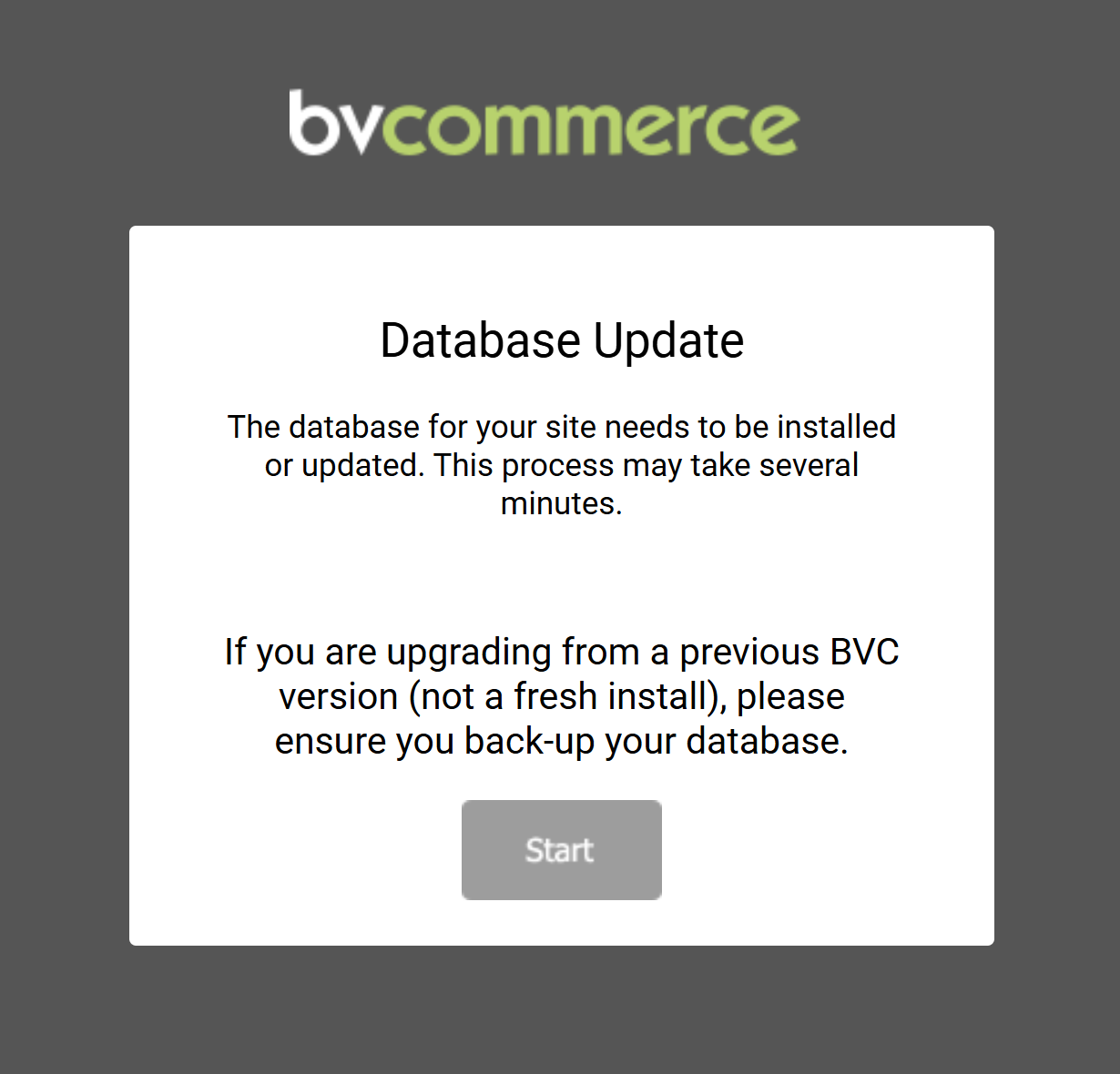
- Click the "Start" button to complete the upgrade. This can take a few minutes. Once the upgrade is complete you will be redirected to the store homepage.
- If your site uses a theme that was created from either the "Bootstrap3 Responsive" or "Bootstrap4 Responsive" theme please read the additional instructions below.
- The file and database portion of the upgrade is complete. Next you need to configure the new features and integrations in BVC 2026.
Configuring BV Commerce 2026 Post-Upgrade
Below are the specific areas that require configuration post-upgrade:
Install License
Download the BV Commerce 2026 license file from the Downloads page of your account. Log into the admin of your website, and you should see a message across the top of the dashboard stating that no license is installed. Click the "Install a Purchased License" text link, and upload your license file to the License page.
Image Sizes
The upgrade process retained the previously set image dimensions for 'small' and 'medium' images. The new sizes--extra small and large--had their dimensions derived by halving the size of the small image and doubling the size of the medium image respectively. These dimensions can be changed by the Images Settings page in the admin (Options >> Site Settings >> Images).
Payment
The "Authorize.Net" and "Paypal Website Payments Pro 4.3.1" credit card gateway integrations have been completely redeveloped using newer APIs and more secure tokenized security. Their replacements are "Authorize.Net API" and "Paypal Advanced Credit and Debit Cards", so you will need to select the appropriate gateway on the Credit Card payment method edit page in the admin (Options >> Site Settings >> Payment >> Credit Card edit). Then you will need to get new credentials from the payment provider.
As before, PayPal shares the same credentials for its credit card processing (if you use them for CC processing) and the PayPal payment method. There is an automated onboarding process that you initiate from the PayPal Express edit page. Once this is complete you will be able to enable Venmo and also setup Apple Pay and Google Pay, as these all leverage PayPal to process their payments.
Checkout
The new Multi Page Checkout has similar settings and content areas like the One Page Checkout Plus that it replaces. Be sure to configure this to suit your needs.
Shipping
The UPS, FedEx, and USPS shipping integrations have been completely redeveloped since BVC 2020 using newer APIs. That means getting new API credentials for each. We did release updates for BVC 2020 with these new integrations, so if your site already has these updates then you may have the new API credentials already. Below are links to setup guides for each carrier:
Updating "Bootstrap3 Responsive" and "Bootstrap4"-derived Themes
BV Commerce 2026 contains many new features, enhancements, and bug fixes to the "Bootstrap3 Responsive" and "Bootstrap4" themes. If you created a theme derived from one of these themes (i.e. you started by duplicating the theme and then modified it) you will need to compare the updated corresponding theme files to your theme and merge the differences. This is where a file comparison tool like Beyond Compare is indispensable as it will allow you to easily compare the theme folders and locate the differences in each file. This is a critical step since themes now contain a significant amount of functional (not just design) code with the new theme architecture of BVC 2015. Many of the new features in BVC 2026 will not function on your site until this step is completed.
Updating Older Themes
BV Commerce 2026 does not support themes derived from "Foundation4 Responsive" or older themes (e.g. "Bvc2013"). While it would be possible for a developer to port the required functionality from the latest "Bootstrap4 Turbo" theme, the amount of effort required to do this doesn't make sense and should instead be invested in creating a new theme derived from the latest, faster "Bootstrap4 Turbo" theme.