The new Bootstrap 4 Turbo (BS4 Turbo) theme in BV Commerce 2026 should form the basis for any new theme you create. It has the latest features, best performance (page speed), improved accessibility, and a fresh design. This theme introduces SCSS (Sassy CSS) and bundling & minification of CSS and JavaScript files which allow for better performance and easier maintenance. In this article we'll walk you through the process of creating a new theme using best practices.
Software Requirements
1. Create a New Theme
We recommend creating a new theme rather than modifying the BS4 Turbo theme directly. This ensures that your custom theme is separate from the one that we released. This is important so changes to the theme in future releases of BV Commerce do not overwrite your custom theme; the downside is that you will need to merge any important changes we make into your custom theme. The other reason to keep your custom theme separate is that you'll always have a fresh, unaltered version of the BS4 Turbo theme to use as a reference.
Start by duplicating the BS4 Turbo theme folder (\BVModules\Themes\Bootstrap4 Turbo); you can do this via the file system or in Visual Studio by copy/pasting the folder. Next you want to rename the copied folder to give it a unique name. Using your site's name for the theme along with the year is a good option. Removing the spaces from the folder name is generally a good idea as well. So, using our CAMPR demo store as an example, we might name the theme folder "CAMPR2026".
2. Give Your Theme Files Unique Class Names
When you duplicated the BS4 Turbo theme in the step above, the files were copied exactly. That means that all of the pages (.aspx), controls (.ascx), and master pages (.master) files have the exact same class names as the original BS4 Turbo theme files. While technically this will still work, if you ever try to compile the website project in Visual Studio to validate your code, you will receive errors due to having more than one class with the same name. Follow the steps below to quickly update all of the class names in your new theme using Visual Studio:
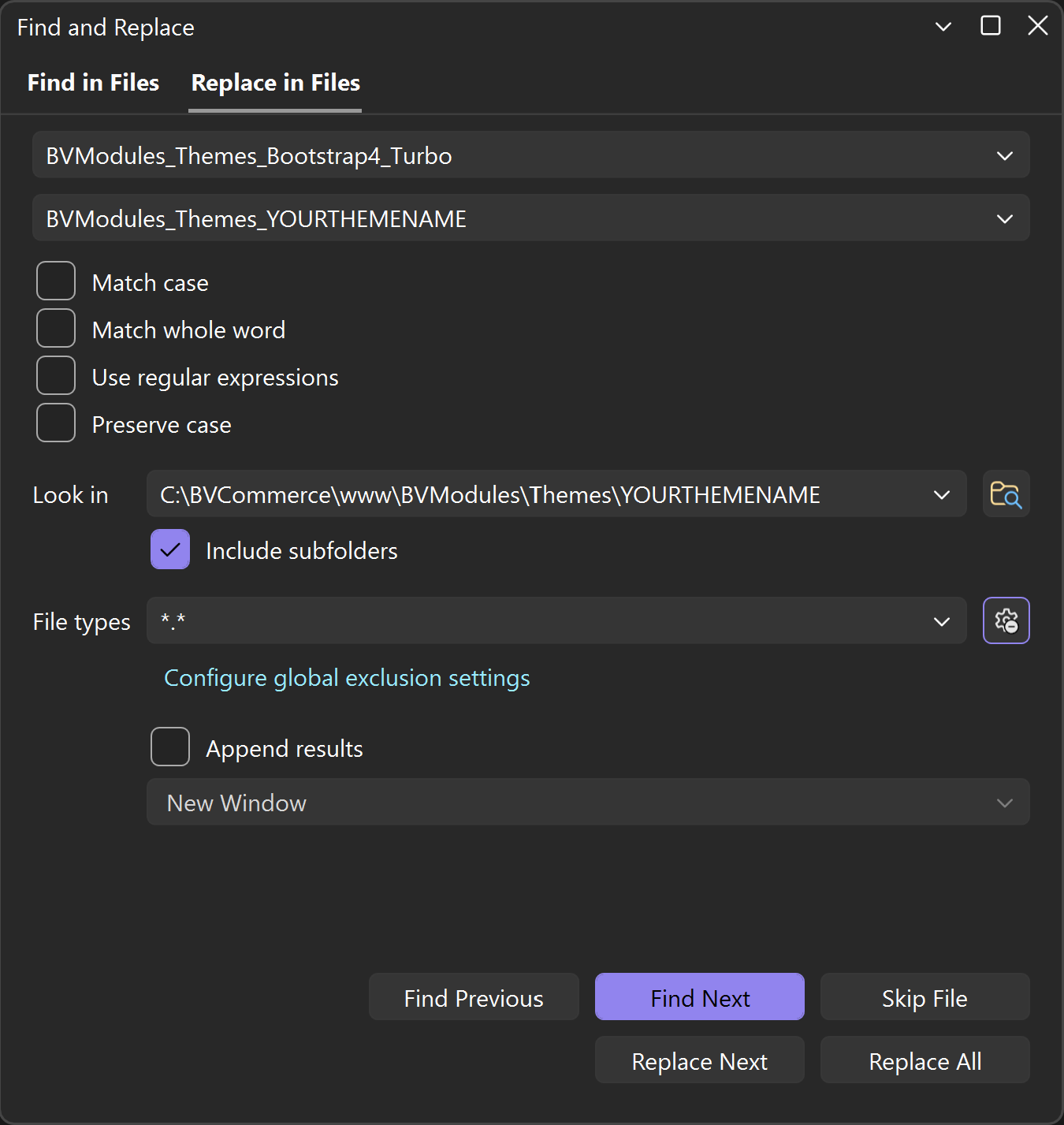
- Open the Find and Replace window and click the Replace in Files tab (Ctrl + Shift + H)
- Set the Find value to "BVModules_Themes_Bootstrap4_Turbo"
- Set the Replace value to "BVModules_Themes_YOURTHEMENAME"
- Uncheck the Match Whole Word checkbox if it is checked
- Set the Look in value to your new theme directory (e.g. \www\BVModules\Themes\YOURTHEMENAME)
- Check the Include subfolders checkbox
- File types should be set to "*.*"
- Click the Replace All button
3. Enable Your Theme
In the admin, go to Options >> Site Settings >> Themes. Select your new theme from the Current Theme dropdown and click the Save button. Your site should now be running your new theme (which is currently just a copy of the BS4 Turbo theme) and is ready for you to design. Note that the information displayed on this page after selecting your theme is pulled from the BVTheme.xml file in the root of your theme folder. You can edit this file to change the information shown. Likewise you can replace the Preview.jpg image in the root of your theme folder which is what's used to display the thumbnail image on this admin page.
4. Setup SCSS Compiling for Your Theme
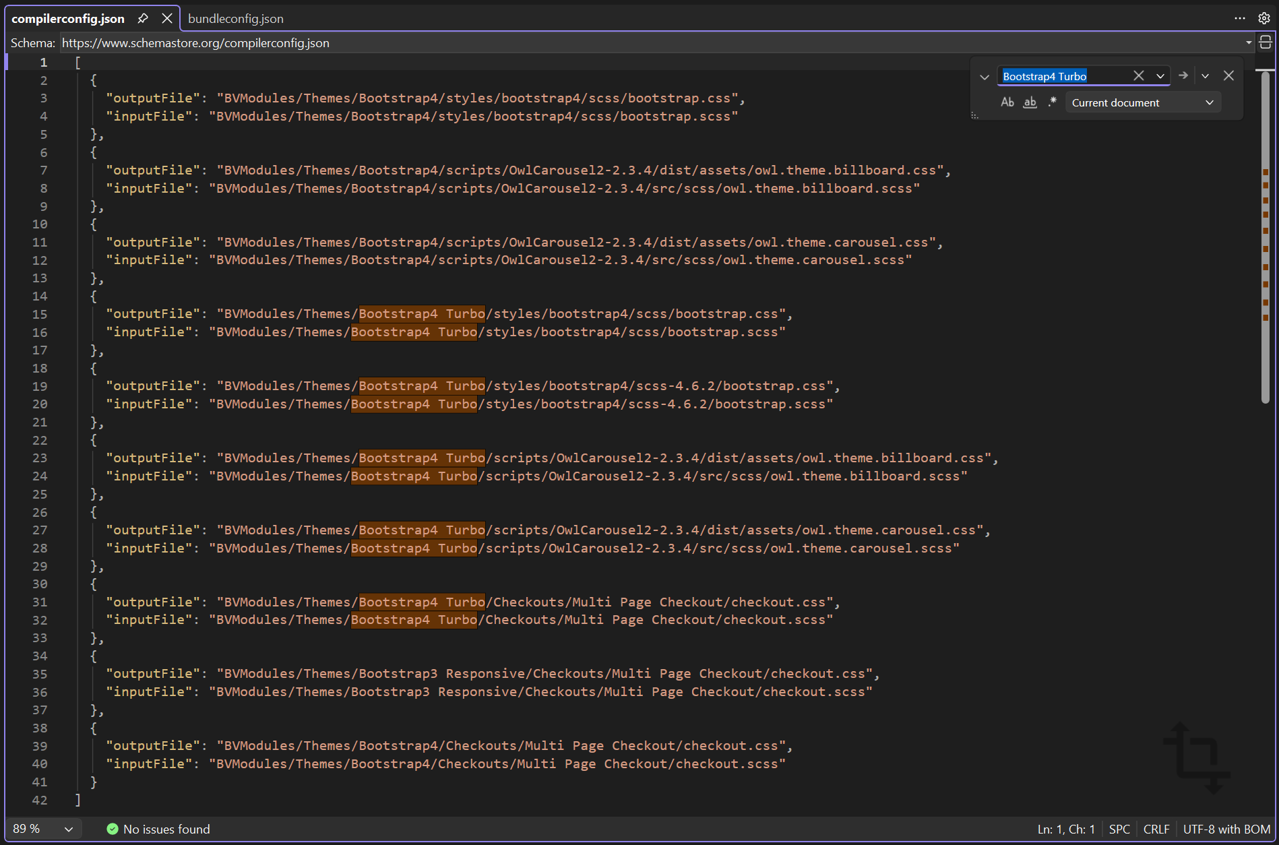
If you have not already done so, install the Web Compiler 2022+ extension for Visual Studio that's linked at the top of this article. Open /compilerconfig.json file. If you're working with a fresh, unaltered compilerconfig.json file, you should only see references to CSS files in the BS4 and BS4 Turbo themes. If not, you may see references to other themes that have been created in the past or possibly added in future versions of BV Commerce. Duplicate the BS4 Turbo sections and update all of the files paths for the outputFile and inputFile to your theme (e.g. BVModules/Themes/Bootstrap4 Turbo/styles/bootstrap4/scss/bootstrap.css >> BVModules/Themes/YOURTHEMENAME/styles/bootstrap4/scss/bootstrap.css).
5. Setup CSS & JavaScript Bundling for Your Theme
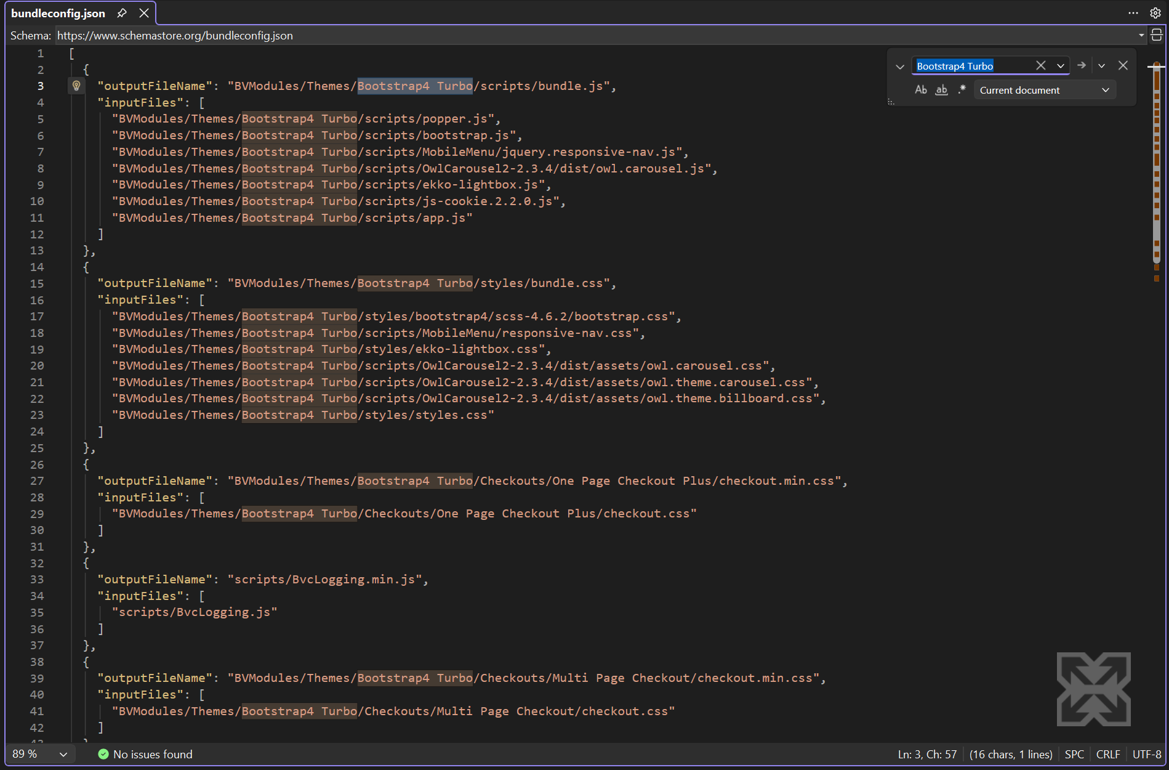
If you have not already done so, install the Bundler & Minifier 2022+ extension for Visual Studio that's linked at the top of this article. Similar to step #4 above, open /bundleconfig.json file. If you're working with a fresh, unaltered bundleconfig.json file, you should only see references to CSS and JS files in the BS4 and BS4 Turbo themes. If not, you may see references to other themes that have been created in the past or possibly added in future versions of BV Commerce. Duplicate the BS4 Turbo sections and update all of the files paths for the outputFileName and inputFiles to your theme (e.g. BVModules/Themes/Bootstrap4 Turbo/scripts/bundle.js >> BVModules/Themes/YOURTHEMENAME/scripts/bundle.js).
Important Notes
SCSS Notes
The BS4 Turbo theme makes extensive use of SCSS. With the Web Compiler extension installed, SCSS files are automatically compiled when the file is saved (provided that the file is configured via the compilerconfig.json file as described in step #4 above). Important Note: never make changes directly to a compiled CSS file as the changes will be overwritten the next time a change is made to its corresponding SCSS file.
Bootstrap Notes
Bootstrap SCSS files are compiled into a single CSS file (and then later minified):
\BVModules\Themes\Bootstrap4 Turbo\styles\bootstrap4\scss-4.6.2\bootstrap.css
Do not edit this CSS file directly. Any changes to Bootstrap should be made to the appropriate SCSS file. Bootstrap SCSS files are located here:
\BVModules\Themes\Bootstrap4 Turbo\styles\bootstrap4\scss-4.6.2\
Other than the _variables.scss file, these files will rarely need to be edited. The _bootstrap.scss file controls what is included in Bootstrap. There are several items we chose not to include by default.
Bootstrap.js is included in the bundle.js file.
Note: \BVModules\Themes\Bootstrap4 Turbo\Bootstrap-4-Source\ is included for reference only. It is not used by the theme.
Multi Page Checkout Notes
Checkout styles are not included in the bundle.css. Instead, checkout.min.css is included via the theme MultiPageCheckout master page and compiled from the \BVModules\Themes\Bootstrap4 Turbo\Checkouts\Multi Page Checkout\checkout.scss.