Posted by Aaron on May 26, 2026
Comments (0)
UPDATE: this documentation is also applicable to installing BV Commerce 2026 SP1. The only difference is that you would download BV Commerce 2026.1.1.6485 from your account in step #1 below.
The process of creating a fresh installation of BV Commerce 2026 is identical to past releases. The system requirements, however, have changed.
System Requirements
Prior to installing BV Commerce 2026 please verify that your server supports these minimum requirements. If you are unsure please contact your hosting company or IT department.
Technically BV Commerce 2026 can run on the same server environment as BVC 2020. However, we are now providing stricter guidance based around the versions of Windows Server and SQL Server that Microsoft is actively supporting. The reason for this is that unsupported software is not considered PCI Compliant since it no longer receives security updates and patches. If you are unsure whether your hosting environment meets these PCI Compliance criteria, please contact your hosting company.
- Operating System
- Minimum: Windows Server 2019 with extended support (valid through January 2029)
- Recommended: Windows Server 2022
- IIS: 10
- .NET Framework: 4.8
- SQL Server
- Version
- Minimum: SQL Server 2017 (with extended support)
- Recommended: SQL Server 2022
- Database compatibility mode
- Minimum: SQL Server 2016 (130),
- Recommended: SQL Server 2019 (150) or above
- Full Text Search enabled (as with past versions of BVC)
Installation Steps
These installation steps assume that you have already created a website in IIS where you will copy the BV Commerce files. If you are using a hosting company, this would have already been done for you.
- Download BV Commerce 2026 from the Downloads section of your account.
- Unzip the file on your computer to a location of your choosing.
- Copy only the contents of the \www folder to the server; the other folders contain the source code for developer use. If you're a developer using Visual Studio 2022 or above you can open the BVCommerce.sln solution file in the folder root to open the source code (note that the solution is setup to use IIS Express by default).
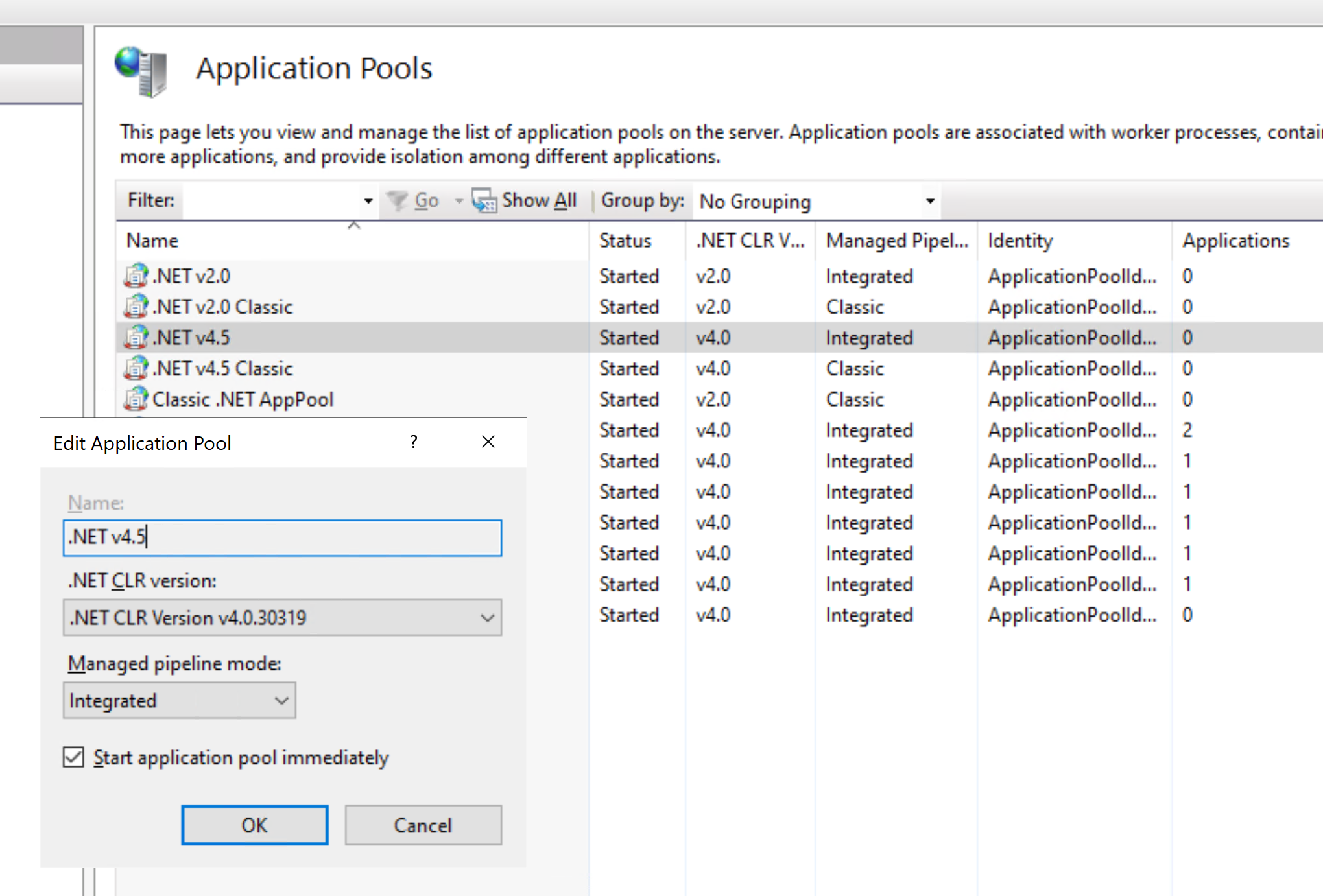
- In IIS set your application pool to .NET Framework 4.0 and integrated managed pipeline mode. Also, be sure to set the app pool to 64-bit (i.e. set "Enable 32-Bit Applications" to "False"). If you're using a hosting company, you may need to contact them to make these changes. Note that if you are installing BV Commerce in a sub-folder of your website, rather than at the root level, you will need to make this folder an application in IIS with its application pool set to .NET Framework 4.0 and integrated managed pipeline mode.
- Create a blank database in SQL Server.
- Using a text editor like Notepad, enter your SQL Server connection string information (username, password, and database name) into the Web.config file found in the root of the site. There is a "Bvc5Database" connection string around line 26 that should look like this:
<connectionStrings><add name="Bvc5Database" connectionString="Server=localhost;database=Bvc2026;uid=;pwd=;"/>
</connectionStrings>
If the SQL Server is on a different server than the website replace "localhost" with the address of the SQL Server. Change "Bvc2026" to the name of your newly created database from the previous step. Enter your username after "uid=" and your password after "pwd=".
- Open your web browser and go to the address of your BV Commerce store. Provided that the steps above were done correctly, you should be redirected to the /SQLPatch.aspx page and see the installation screen below. If you don't, please re-check the steps above. If the version of SQL Server or the compatibility level of your database does not meet the system requirements outlined above, you will see an error displayed on the page, and you will not be able to proceed (the "Start" button will be disabled).
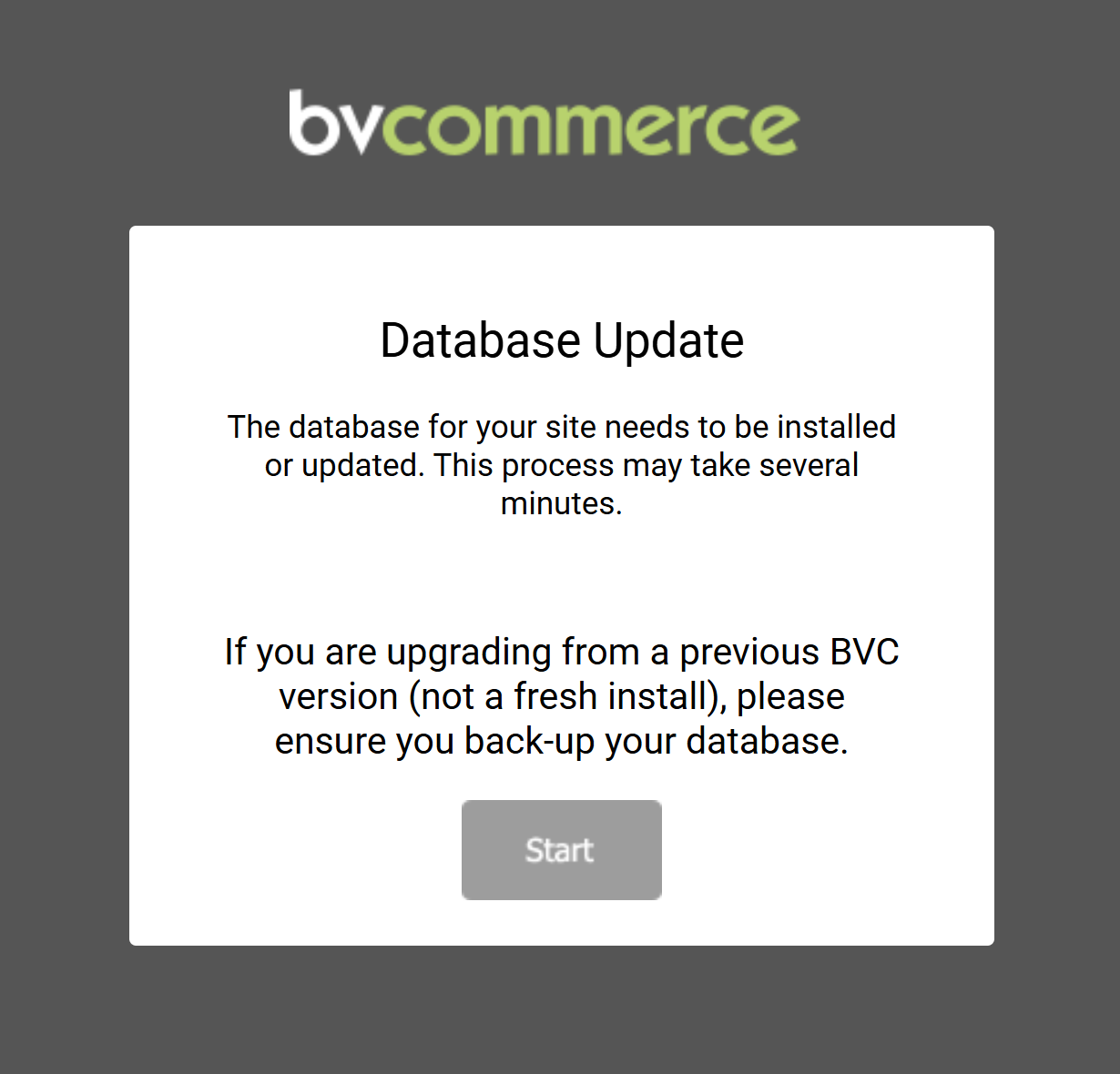
- Click the "Start" button to complete the installation. It can take a few minutes to setup the database. Once setup is complete you will be redirected to the store homepage.
- To access the store administration area, click the account icon (person with lock) in the upper-right corner of the page (to the left of the cart icon).
- Enter the default username "admin" (into the email address field) and the default password "password".
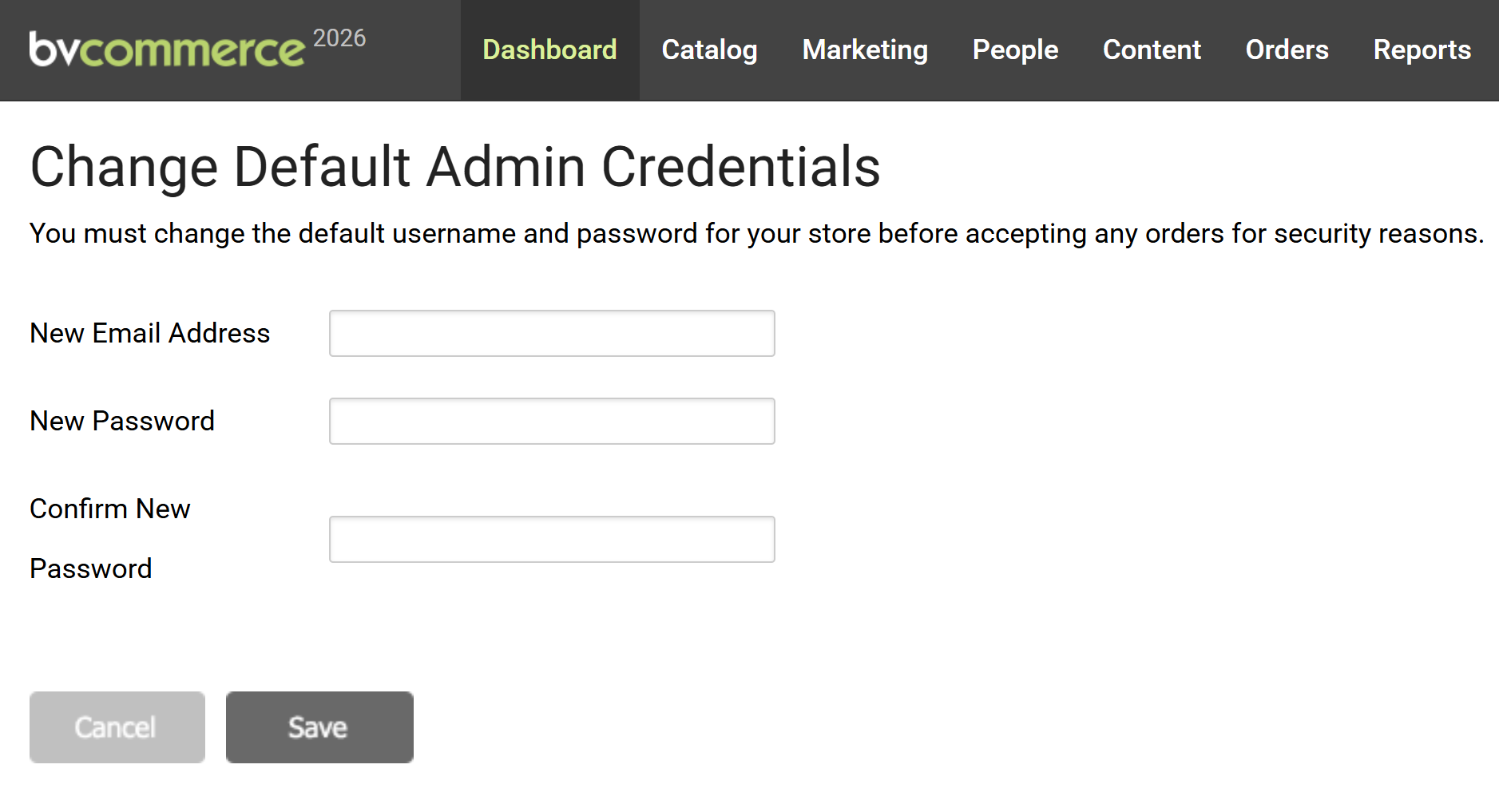
- Per PCI Compliance requirements you will now be required to change these credentials (screen shot below). Be sure not to forget this information! Once you click the "Save" button you will be logged out and asked to log back in using your new login credentials.
- Congratulations! You've successfully installed BV Commerce 2026.