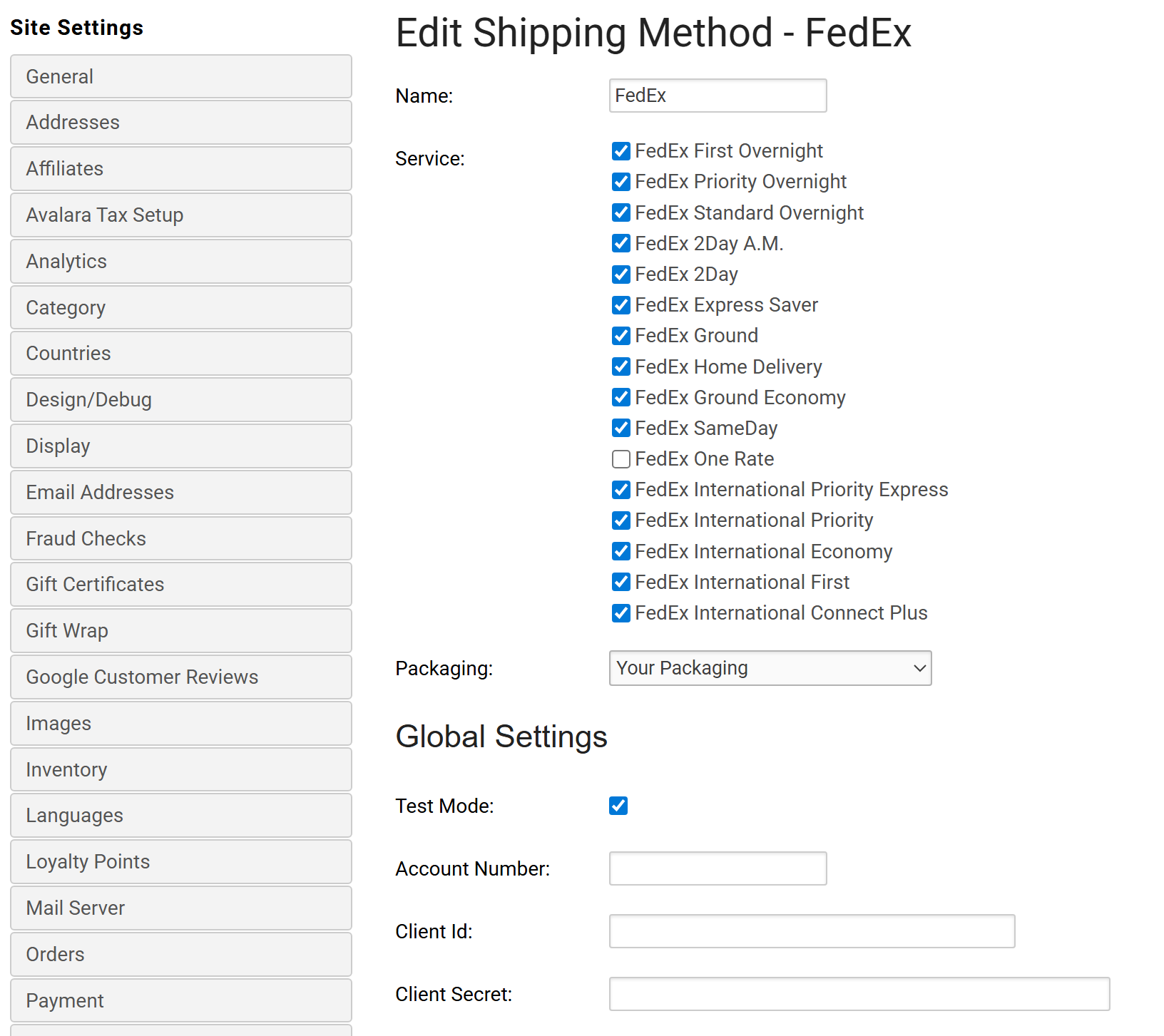
The following document will walk you through the steps to set up FedEx OAuth credentials for use with the new FedEx Rates and Transit Times API. BV Commerce uses this REST API to get real-time rates for FedEx shipping methods.
1. Login to your FedEx account
Login to your FedEx account or, if you don't already have an account, click the sign up link from the login page to create a new account.
2. Setup BV Commerce 'project' on the FedEx Developer site
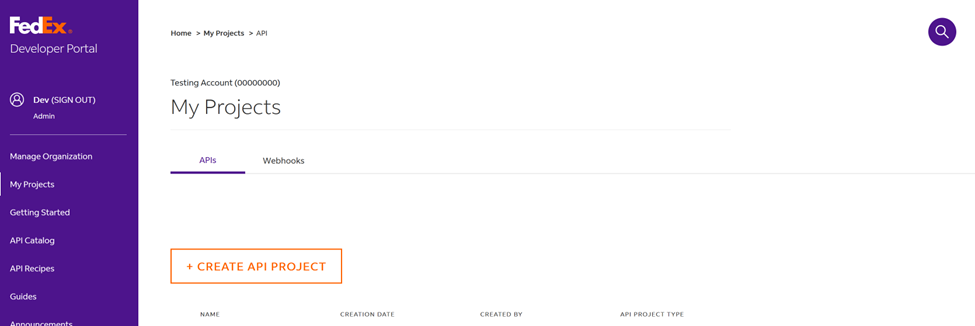
After logging into your FedEx account, go to the "My Projects" page on the FedEx Developer Portal site. You should see a blank list of projects like the screenshot below unless you've previously setup credentials for a project other than BV Commerce. If you see your store project listed, then you have already completed this step and should skip to Step #3. If BV Commerce does not appear in the list (or the chosen name for your store project), click the Create API Project button as shown in the screenshot below.
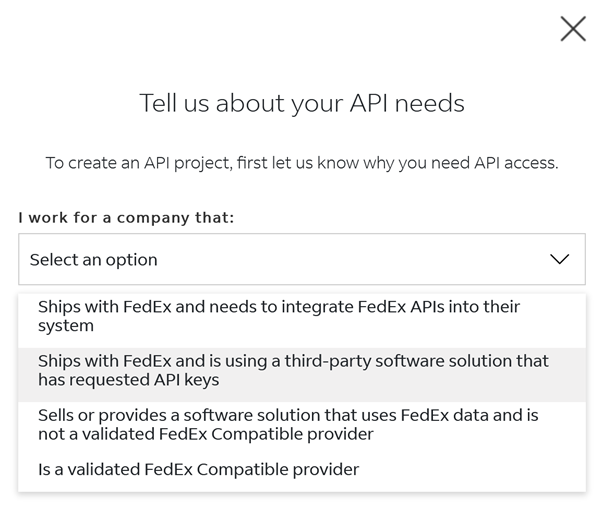
You may need to answer a question about why you require access to the FedEx API as shown below. Please select "Ships with FedEx and is using a third-party software solution that has requested API keys".
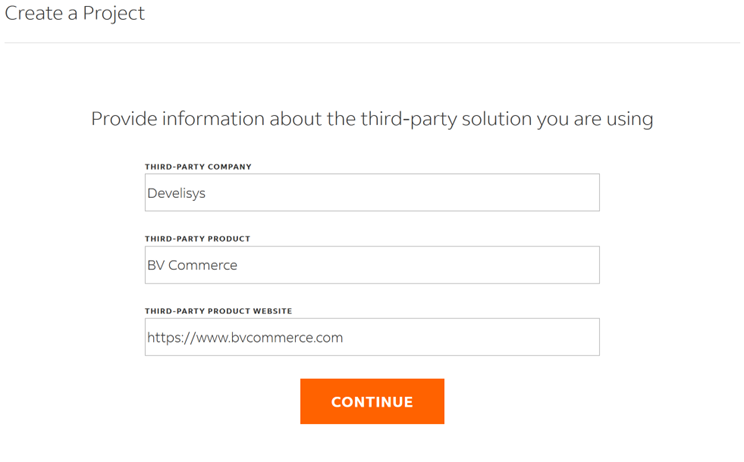
Upon answering the question, you will be forwarded to the "Create a Project" screen where you can enter the following information and click the Continue button.
On the next screen you are presented with a selection of APIs to utilize with your BV Commerce store. In Step 1, select Ship, Rate & other APIs as shown below:
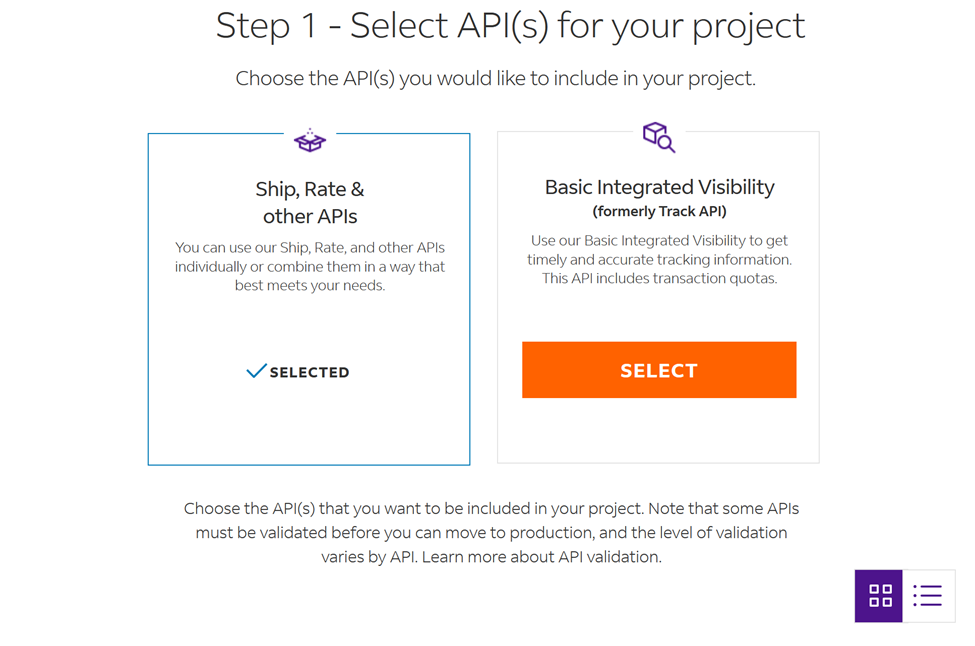
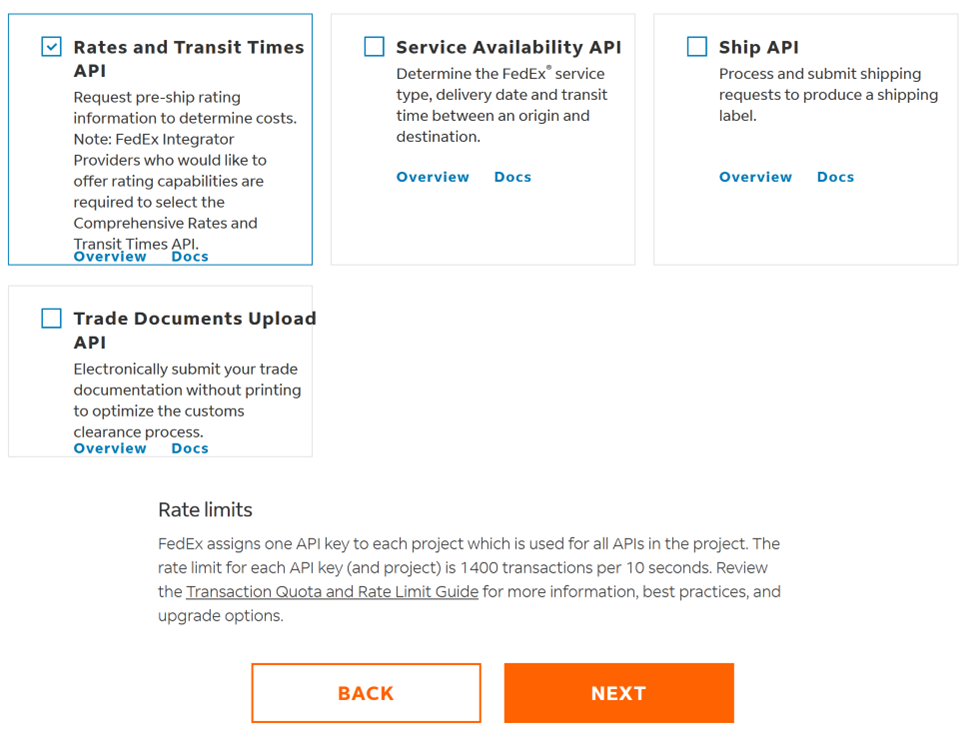
Scrolling further down the page, select "Rates and Transit Times API" as shown below and then click the Next button.
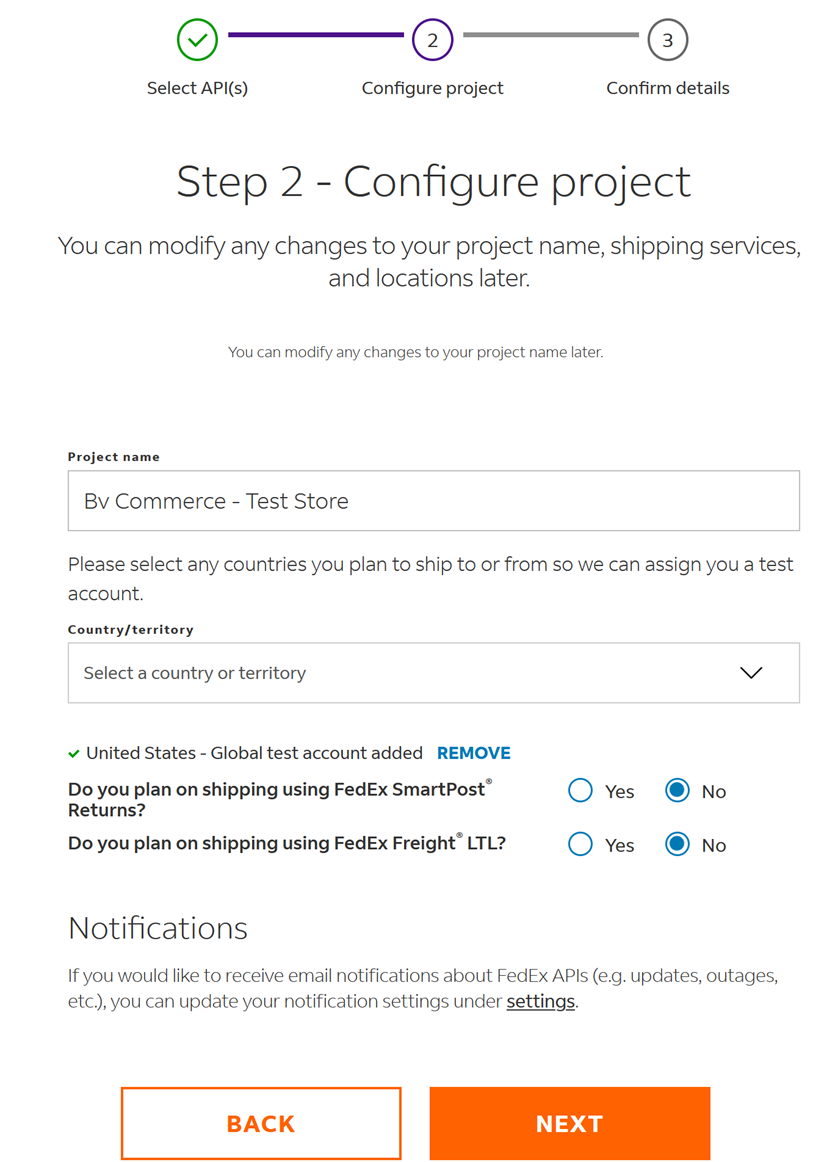
When configuring the project, choose a project name that will help you easily identify the store within your list of FedEx projects. Select the appropriate country/territory for your BV Commerce store, then click Next.
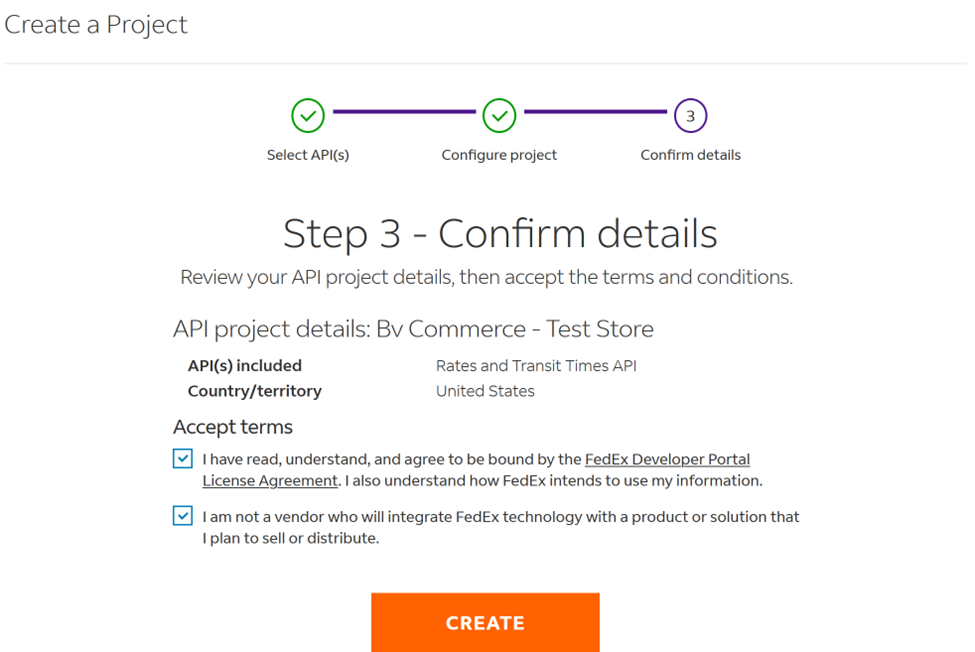
You will then be presented with the screen below where you will be required to agree to the FedEx terms and conditions and then click the Create button:
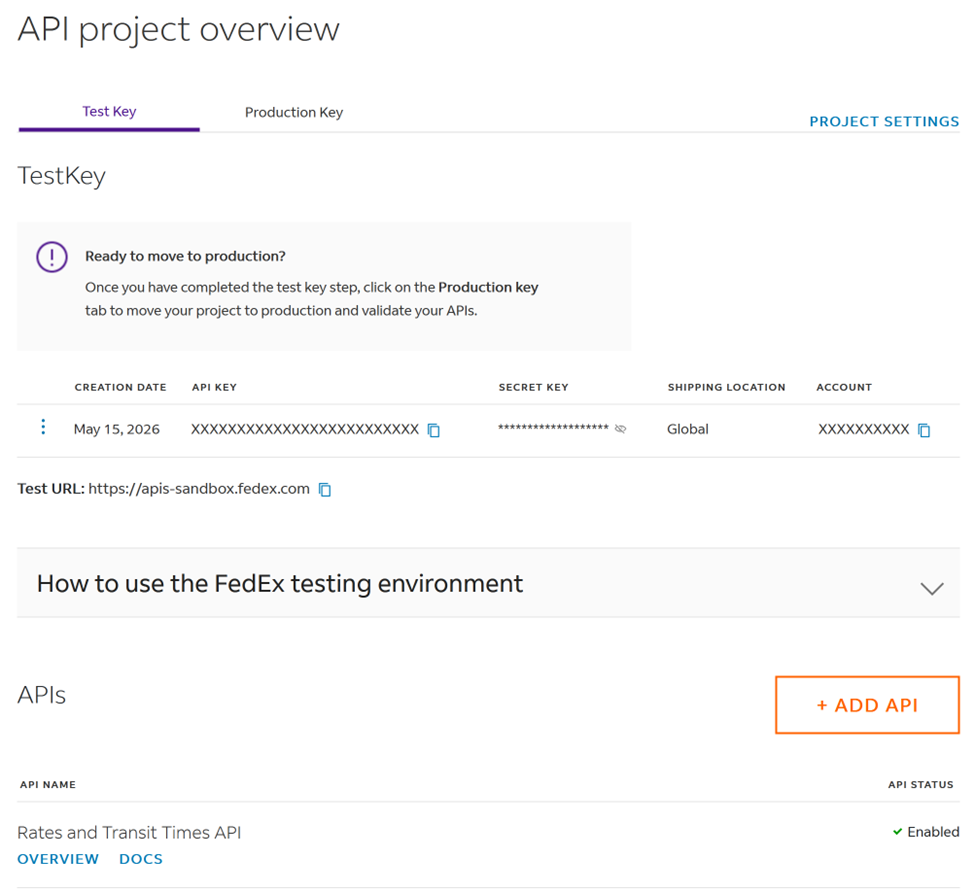
At this point you have created a Test Key as shown below, which is intended for testing with the FedEx sandbox (test) environment and not a production website. To get a Production Key, click the Production Key tab.
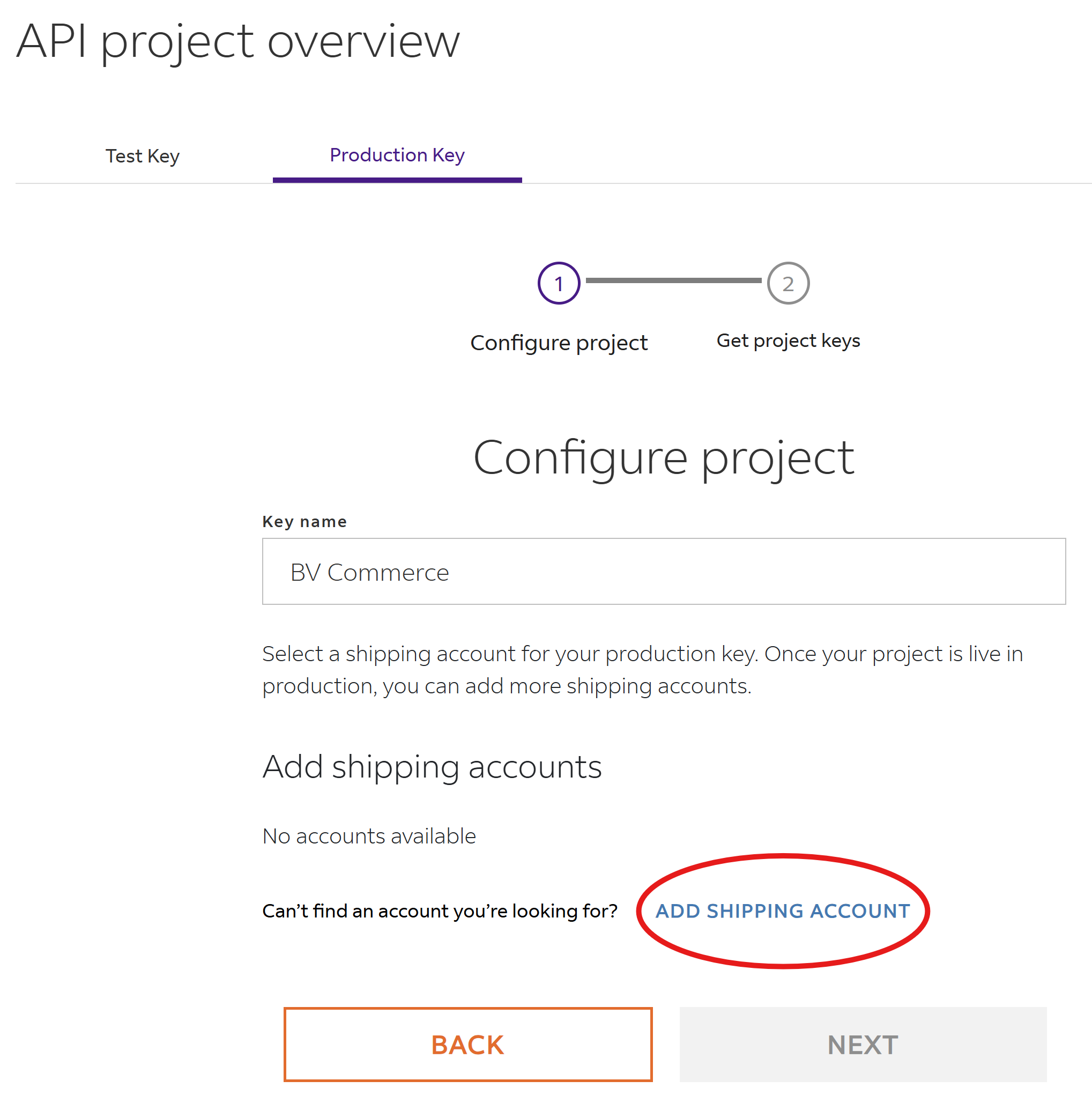
On the Production Key tab, enter "BV Commerce' (or whatever name you like) into the Key name field. Then click the Add Shipping Account link as shown below (circled in red):
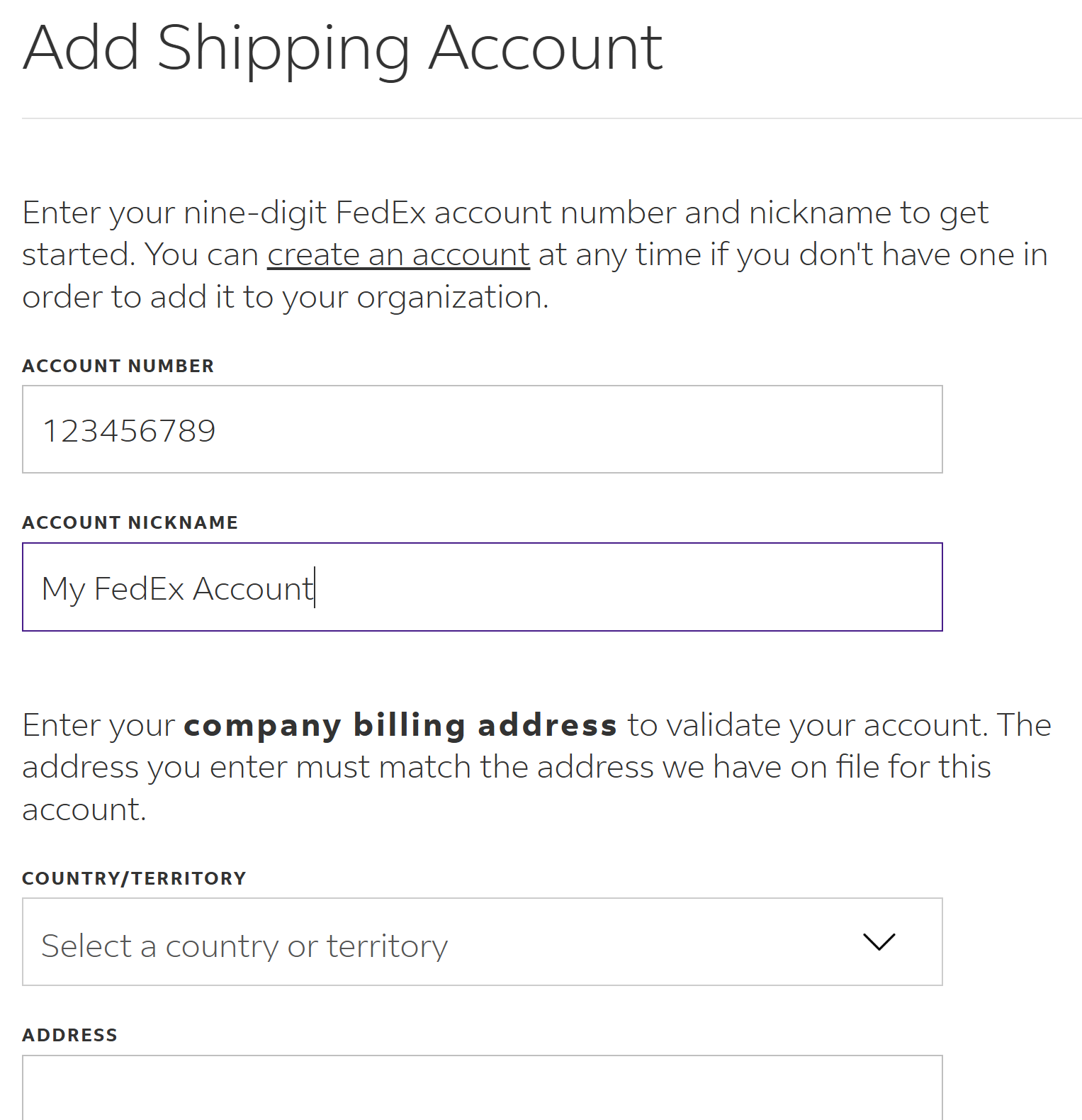
On the next screen (shown below), enter your FedEx account number and a nickname for the account. Then complete the rest of the form by entering the address information that corresponds to your FedEx account number.
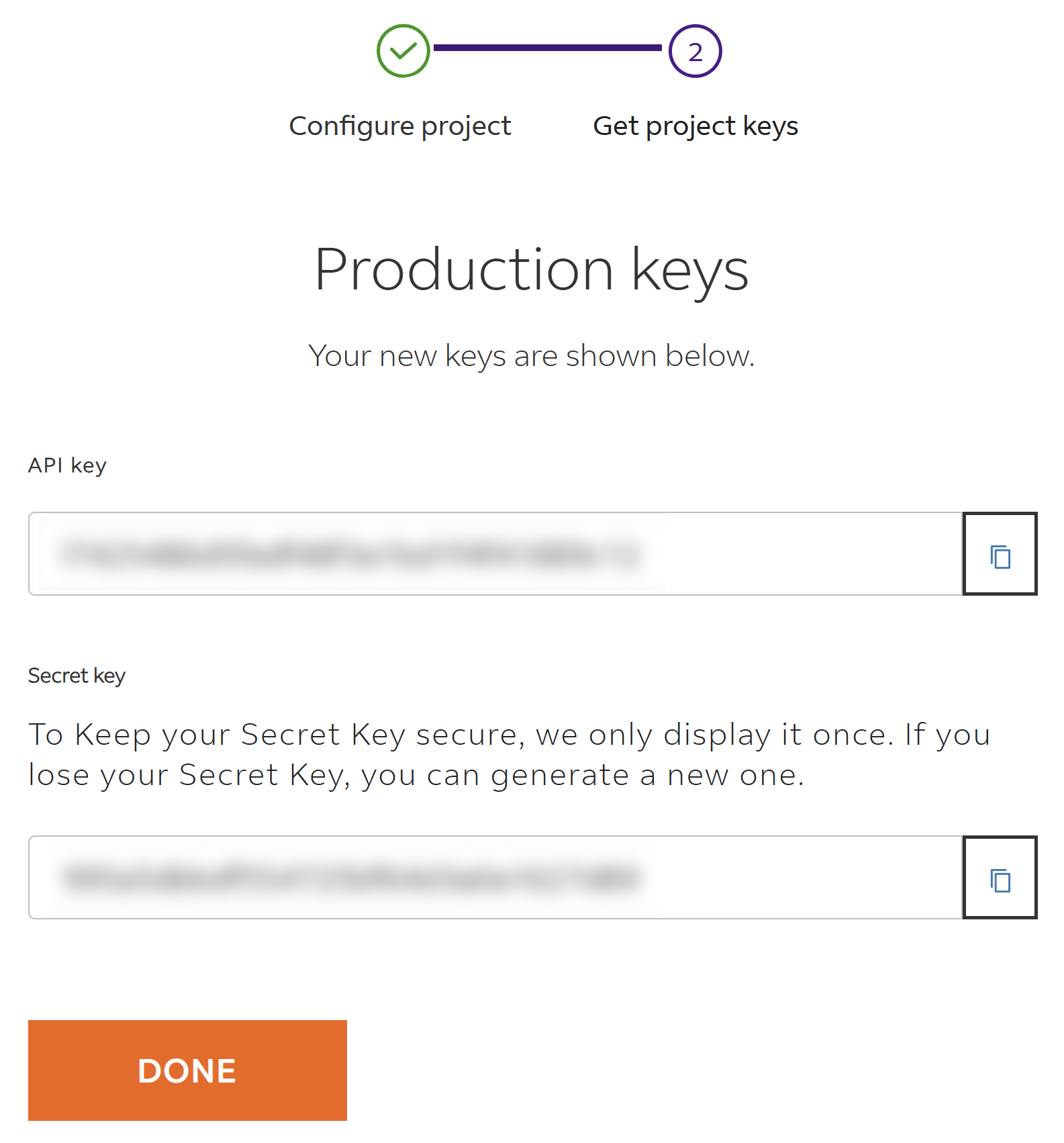
On the next screen you are presented with your API key and secret as shown below (but with the values blurred). These are the values that you will need to copy/paste into BV Commerce in Step 3 below so it can talk to FedEx using the new REST API.
3. Copy/Paste the Client ID and Client Secret into BV Commerce
Log into your BV Commerce store admin and go to the Options menu at the top and click "Site Settings". Scroll down and click "Shipping Methods" from the left-column menu. Click the Edit button next to the first FedEx shipping method you find or, if you haven't setup any FedEx shipping methods, select "FedEx" from the dropdown menu at the top of the page and click the New button.
Enter your FedEx Account Number and copy/paste the Client ID and Client Secret from the FedEx project into the appropriate fields (see below). You may then configure the remaining settings for the shipping method as needed. Be sure to click the Save button when complete.